
SING KARAOKE USING VCD KARAOKE DISC INSTRUCTIONS
Many VCD Karaoke discs that you buy from
Nguoi Dep Binh Duong, New Castle, Love Music, Phuong Hoang have singer's voice
automatically sing. This tutorial will show you how to sing using VCD Karaoke
& how to TURN OFF the singer's voice if that happens.
This tutorial will show you 2 ways to turn off.
Part 1: For people who use Windows Media Player to play VCD Karaoke.
Part 2: For people who use Sound Blaster Live to play VCD Karaoke.
This tutorial is prepared by Công tu² (Coi Thien Thai's Webmaster)
[Windows Media Player] [Sound Blaster Live]
Part
1: USING WINDOWS MEDIA PLAYER
(Windows 98, Second Edition)
I. To
Sing Karaoke.
II. Turn off singer's voice.
I. To Sing Karaoke using VCD Karaoke:
If you use Window Media Player to play VCD Karaoke, do the following:
1. Insert the VCD Karaoke disc into
your CD-Rom drive
2. Open Window Media Player:
- Start ---> Programs ---> Accessories --->
Entertainment ---> Windows Media Player
3. Open the song you like to sing, for example song
number 1:
Assume your CD-Rom is D-drive
- File ---> Open ---> Browse and select D
drive and click on folder MPEGAV
- You will see nothing in the directory MPEGAV.
- In "Files of type" select All
files, you will see a llist of song with the name Avseq01.dat (Song 1),
Avseq02.dat (Song 2), Avseq03.dat (Song 3), etc.
- Select Avseq01.dat
- click OK. (See Figure 1)
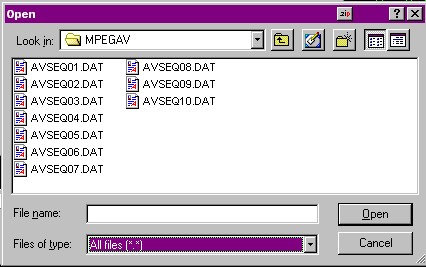
Figure 1: Select a song to sing
The Windows Media Player will play that song. Now you can go ahead to sing.
II. What if there are singer voice automatically sing? How to turn off ?
To turn off singer voice, do:
1. When the Windows Media Player play the song,
Right click on the screen you will see a sub-menu.
2. Choose Properties (See
Figure 2)
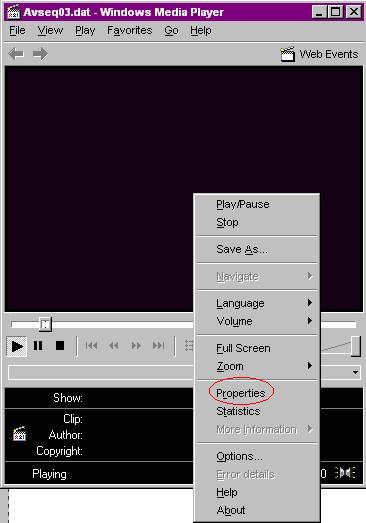
Figure 2: Select Properties
3. You will see a menu like this
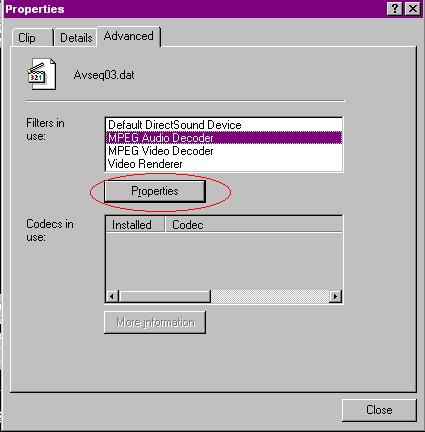
Figure 3: Select Advanced tab & choose MPEG
Audio Decoder
- There are 3 tabs Clip, Details
and Advanced.
- Select Advanced tab.
- In Filtes in use: select MPEG
Audio Decoder ( see Figure 3)
4. Click Properties, you will see a sub-menu like this
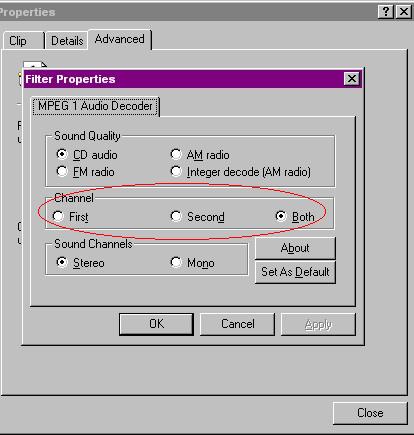
Figure 4: In Channel select either First or Second
channel to turn off singer's voice.
- In Channel, select either First or Second channel and click OK to turn off singer's voice. In some CD, select First channel will turn off the singer's voice, but some you must select Second channel to turn off. If Both is selected, singer will sing automatically.
Now you will hear music only !

Part 2: USING SOUND BLASTER LIVE:
I. Sing
Karaoke using Sound Blaster Live
II. Turn off
singer's voice in Sound Blaster Live
I. Sing Karaoke using Sound Blaster Live:
1. Insert VCD Karaoke disc into
D-drive
2. Open Creative PlayCenter.
- Start ---> Programs ---> Creative ---> Creative
PlayCenter
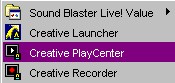
Figure 5: Open Creative PlayCenter
3. You will see a picture like this:
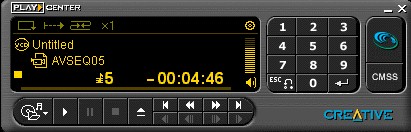
Figure 6: Creative PlayCenter
- To sing song 1, click number 1 etc.
II. What if singer's voice automatically sing when using Sound Blaster Live? How to turn off ?
1. While Creative PlayCenter is playing a song, Right click on the screen of that screen and select Properties (See Figure 7)
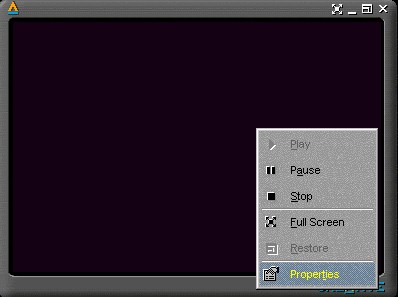
Figure 7: Right click and select Properties
2. To turn off singer's voice, in Channel, select First or Second to turn off singer's voice. To have a good sound, Stereo should be selected in Sound Channel (See Figure 8)
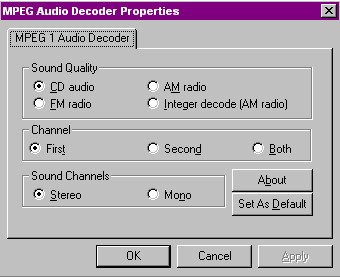
Figure 8: Select First or Second channel in Channel
to turn off singer's voice
3. Click OK.
Now you can sing using your own voice along with music.
Copyright © 2000 by Coi Thien Thai.
All rights reserved.
Email: [email protected]
Powered by CoiThienThai.com
Last Update: March 18, 2002
This page has been visited (Since July 6, 2000):